Web Page Scraping works directly on the current page: open the panel, click elements to create columns, and export the generated table as CSV.
Step 1: Install and open a supported page
Install Web Page Scraping, then open the page you want to extract from. The extension only runs on regular http(s) pages and works best on repeated layouts (cards, rows, list items).
Step 2: Open the panel
Click the extension icon in the browser toolbar. A floating panel appears in the bottom-right corner with two sections: Columns and Table.
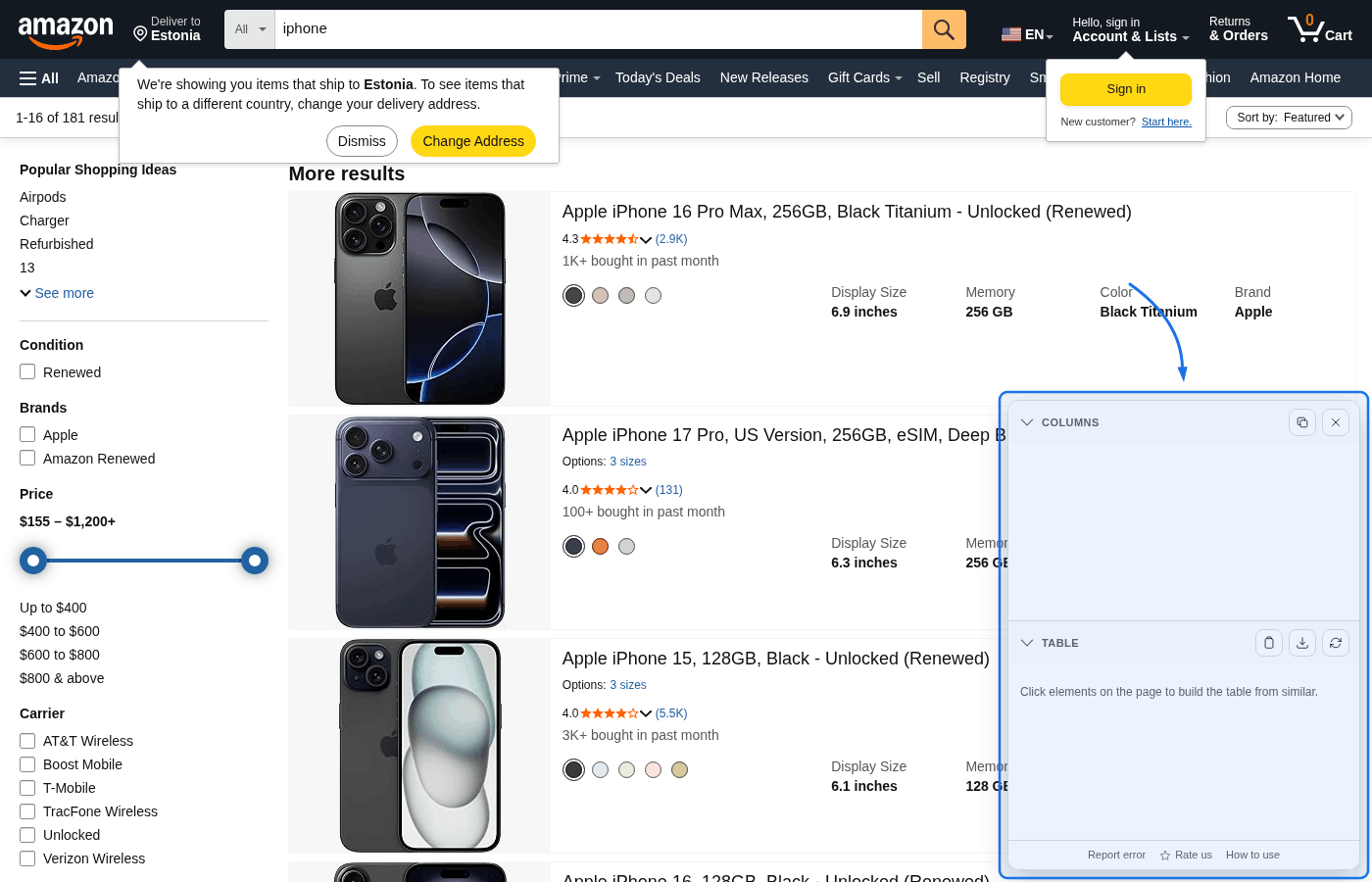
Step 3: Pick columns by clicking page elements
Click an element on the page (for example product title, price, or rating). The extension highlights similar elements and adds them as one column. Repeat this for every field you want in the output table.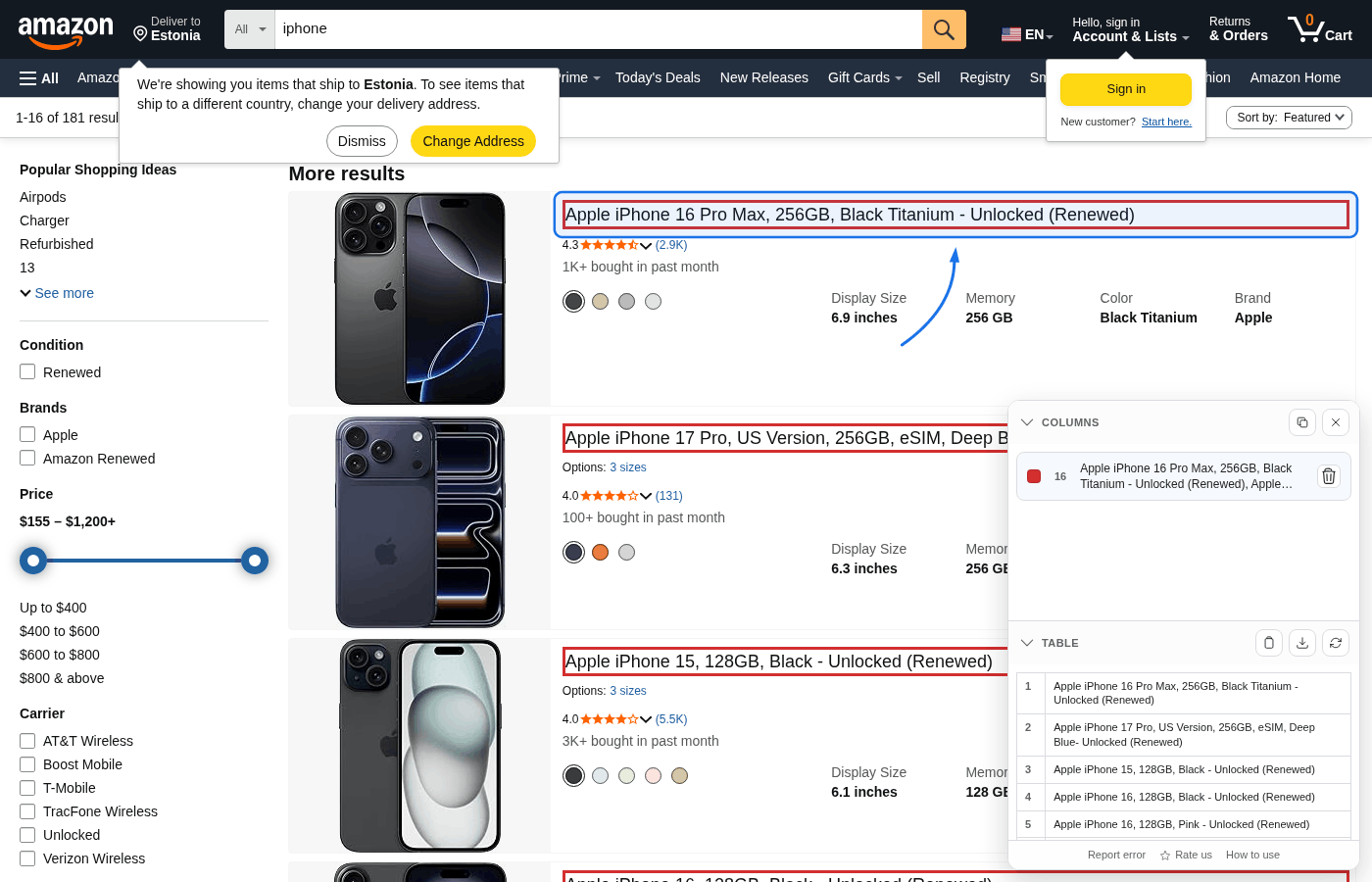
Step 4: Adjust and refresh when needed
You can remove a picked column from the Columns list, by right-clicking a highlighted element, or by clicking an already highlighted element again.
Refresh table is important when the page grows after you first built the table—for example infinite scroll or “load more” blocks that add more cards or rows. Those new elements were not in the DOM when you picked columns, so the extension does not automatically include them. Scroll (or otherwise load) the extra items, then click Refresh table so the preview and CSV match everything currently on the page.
The same applies if lazy-loaded chunks replace or shift content: refresh re-reads the live DOM so row counts and cell text stay accurate.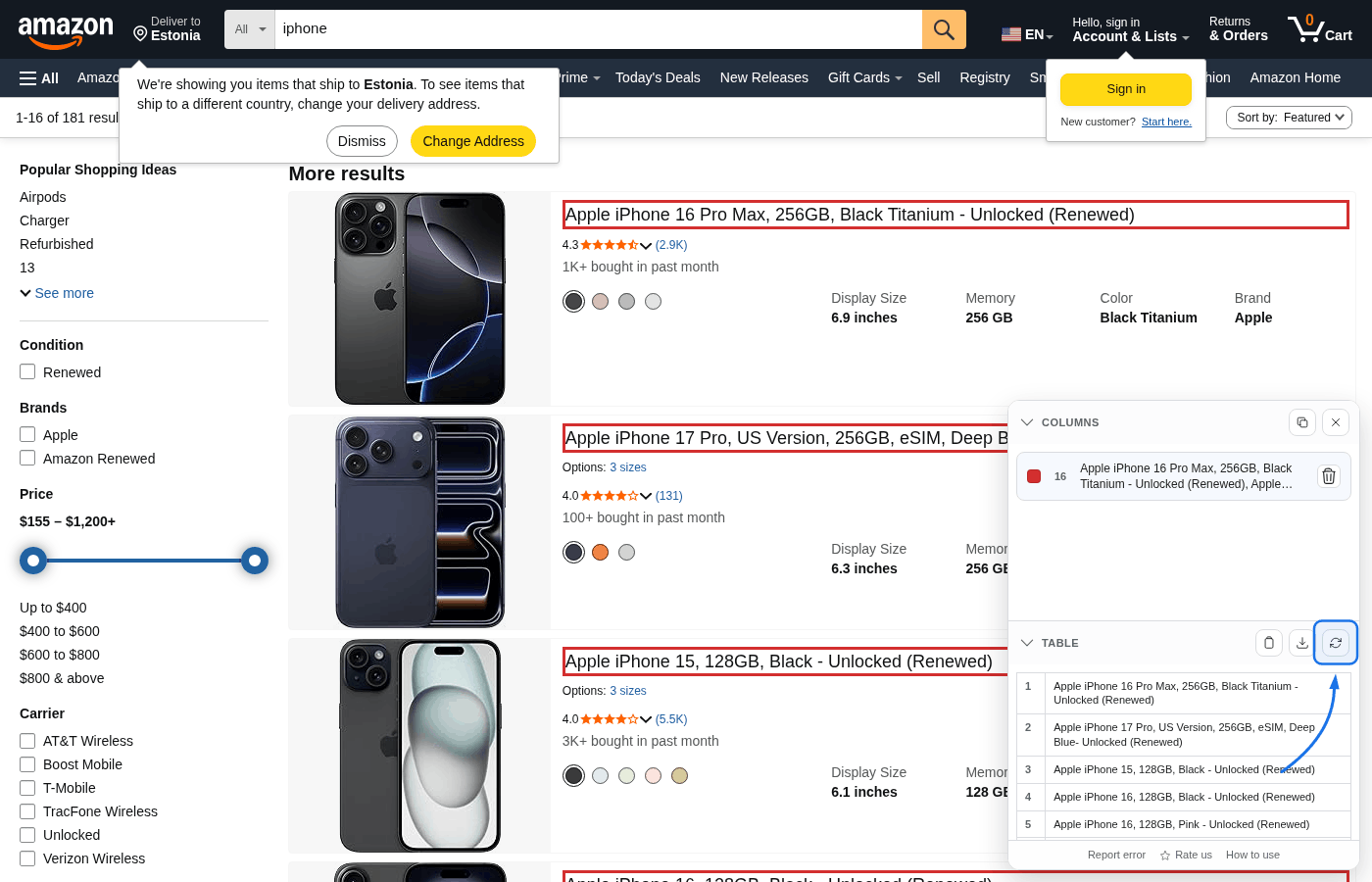
Step 5: Export CSV
Review aligned rows in Table, then export with Copy CSV or Save CSV. Saved files use the default name table-results.csv.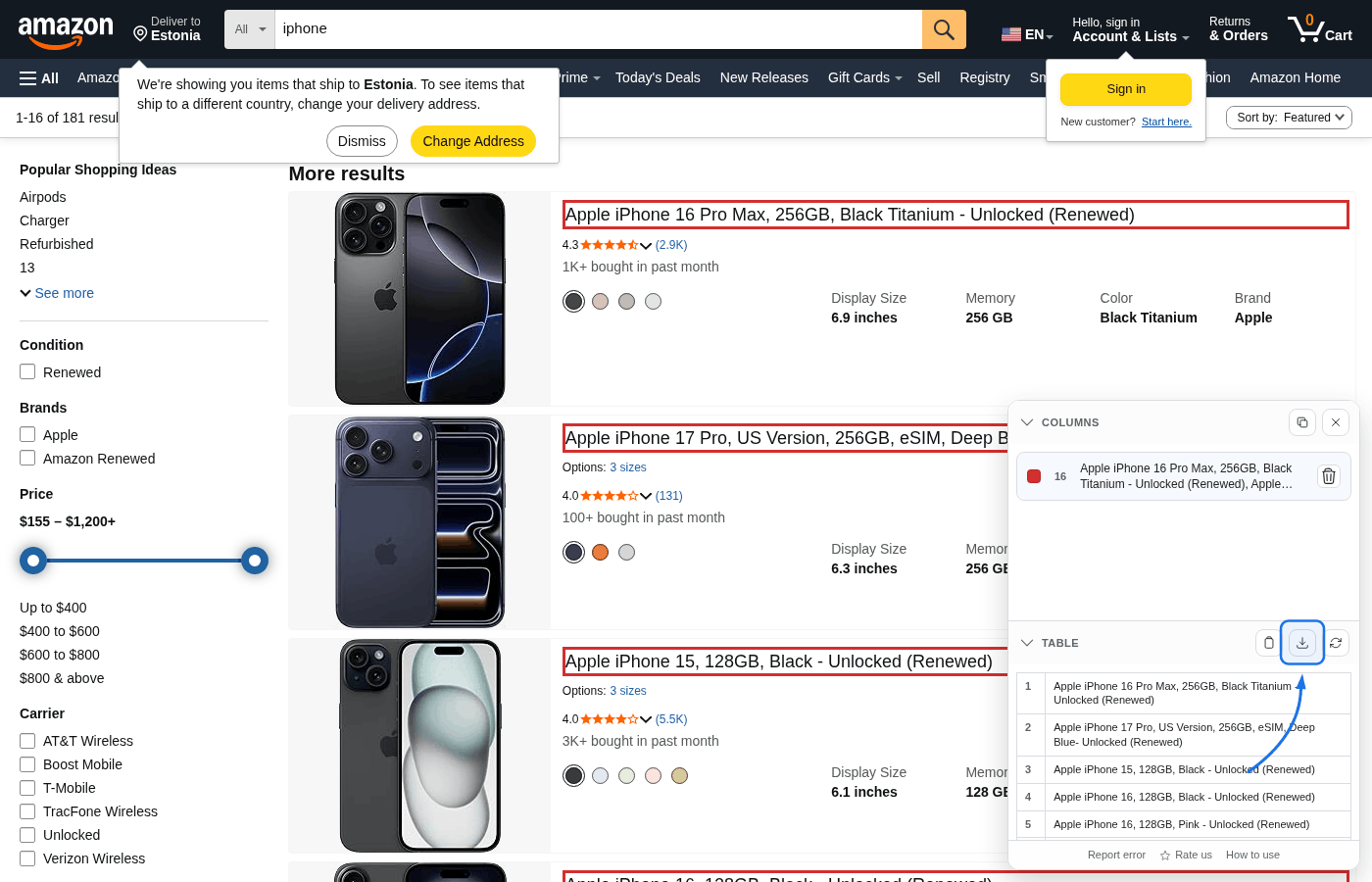
What the algorithm does
The extension keeps the flow user-driven and uses structural matching to build rows from your picks:
- The first successful pick sets a repeating container fingerprint for the page.
- Each next click is converted into a structural relation from container to target element.
- That relation is replayed across matching containers to produce a full column.
- The Table aligns columns by DOM order to produce row-like output.
- CSV is generated from the current live DOM so refresh reflects current page content.
Tips for best results
- Finance and legal news: Pick headline first, then snippet and source link to create clean article rows.
- Search results: Pick title, URL, and snippet as separate columns for query exports.
- Product pages: Pick title and price first, then optional rating/review count columns.
- If a click shows no useful matches, choose a more specific element inside one repeated card/row.
Limitations
http(s) pages only: The panel will not inject on Chrome internal pages, extension pages, or the Chrome Web Store.
Current page scope: There is no auto-pagination or auto-scroll extraction. Scroll/load data first, then use refresh.
Text-focused cells: Exports are CSV text values from matched elements. Binary assets are not exported directly.
No iframes: Content inside iframes is not captured.
Troubleshooting
- Panel does not open: verify the page URL starts with
http://orhttps://. - Wrong elements highlighted: click a deeper element inside one repeated card/row to improve matching.
- Table looks stale: click Refresh table after lazy-loaded content appears.
- Need support: use Report error in the panel footer to send a structured report.
Roadmap
We plan to add JSON export, an API, and MCP (Model Context Protocol) integration so self-hosted bots and local LLMs can request structured data without manual browser steps.